
Purchase orders and stock
Order the blanks your orders need, and know what came in.
From order to blank
- Items to order, grouped by supplier
- Purchase orders sent by email or supplier API
- Receiving in parts
- Stock held for orders
Purchase orders for print shops, made from your orders
Ordering blanks is where small mistakes cost the most. One size missed and a whole job waits. One order counted twice and you are left with boxes of stock. In Dyenzo, purchase orders start from what your open orders still need, so the list of blanks to buy is always worked out for you, by supplier, by colour and by size.
The needs purchasing list
Every open order with blanks to buy shows on one list, grouped by supplier. It shows how many of each size the orders need and how many to order, after stock you already hold for them. Tick the rows and raise purchase orders in one go. Each line remembers which order it is for, so when the goods arrive Dyenzo knows which jobs can start.
Raising and sending a purchase order, step by step
- Raise the purchase orders from the needs purchasing list, or start one by hand.
- Check the draft. Change quantities, add lines, or send a different item in place of one that is out of stock.
- Set the delivery address for this purchase order, or leave your default.
- Send it. The supplier gets an email with the purchase order as a PDF and a link to view it online, and you see when they first opened it.
- For suppliers connected by API, the order goes straight into their system instead of by email.
Automatic purchasing, when you want it
Turn on automatic purchasing and Dyenzo makes purchase orders for new orders on its own, either as drafts for you to check or sent at a time you choose each day. It is off until you turn it on. Before a draft is sent, its lines are brought up to date with what each order needs now, so a cancelled or changed order is not ordered twice.
Receiving in parts
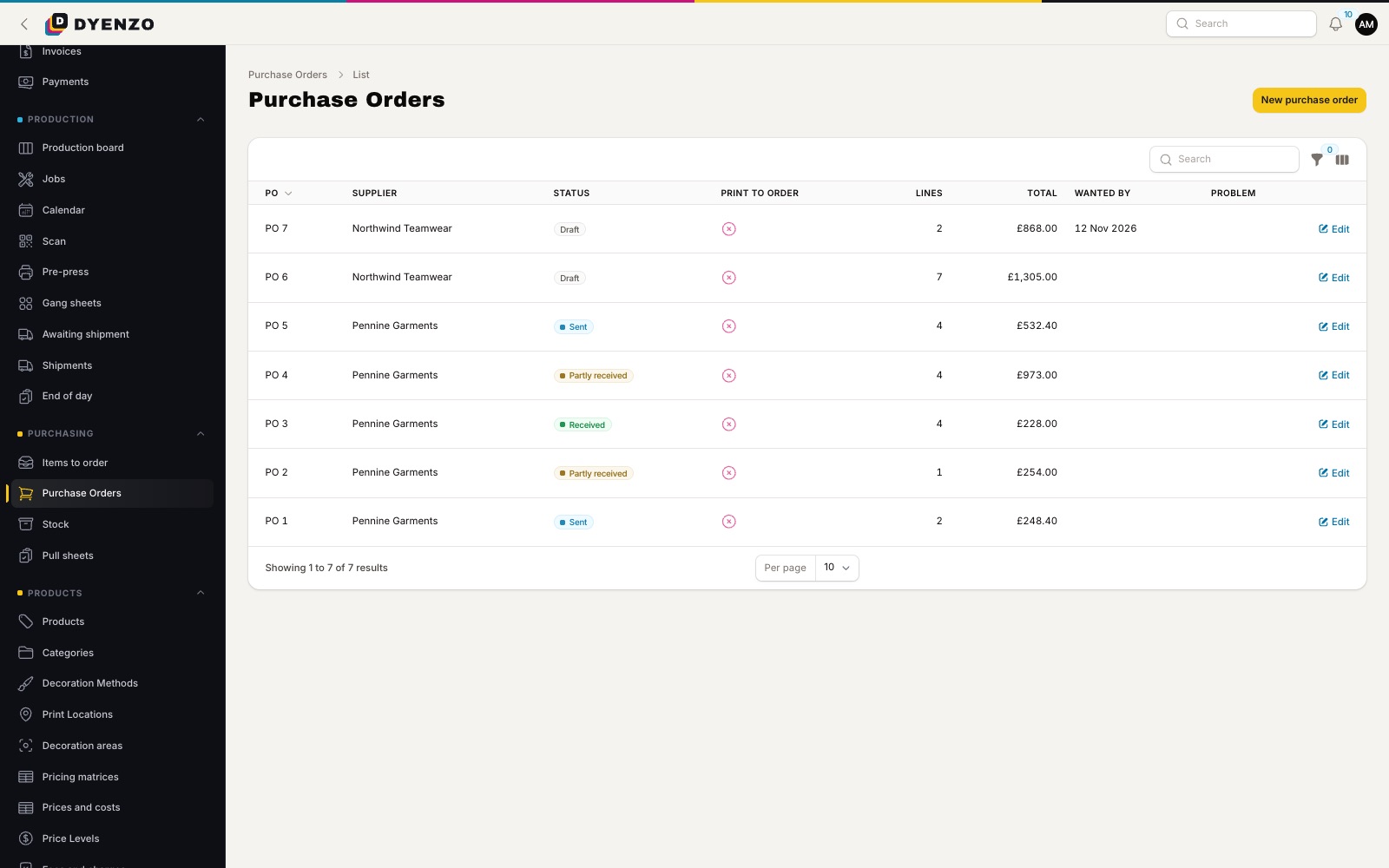
Deliveries rarely arrive in one box. Receive what came in, line by line, and record any issues. Extra pieces go into stock. When a supplier cannot send the rest, close the purchase order short. Scan the barcode on a purchase order to open its receiving page straight away. Orders waiting for blanks show "Awaiting stock" until they arrive, and their production jobs start as soon as the blanks are in.
Stock on hand
If you keep stock, Dyenzo holds it for orders as they are placed and takes it off when they ship. Count stock by CSV, set a low stock alert for the morning, and let staff see when a supplier has fewer of a size in stock than a quote asks for.
Settings that matter
| Setting | What it does |
|---|---|
| Supplier email | Where purchase orders are sent, with replies coming back to you |
| Automatic mode | Off, make drafts, or send at a set time |
| Delivery address | Your default address, or one per purchase order |
| Purchase order terms | Your own terms printed on every purchase order |
| Low stock alert | Who hears about low stock, and when |
What happens next
Received purchase orders post to QuickBooks Online or Xero as bills, so your books match what you bought. Blind purchase orders leave your logo and billing details off, for goods that go straight to your customer.
Questions
Which suppliers can I order from?
Any supplier that takes orders by email. S&S Activewear, SanMar and alphabroder also connect for catalogues and ordering.
Can one purchase order cover several customer orders?
Yes. Lines for many orders from the same supplier go on one purchase order, and each line still knows its order.
What if the supplier sends something else?
Substitute the item on the draft line. The line still covers the same order, and receiving stocks what was actually sent.
Related
Dyenzo is opening to its first print businesses
Write to us for early access. Tell us what you print and which modules you need.