
Production management
See every job by stage and move it on with a scan.
On the shop floor
- A production board for each decoration method
- Job tickets with barcodes
- Station scheduling and a calendar
- A TV view for the floor
Print shop production management without the whiteboard
Most shops run production from a whiteboard, a spreadsheet and memory. It works until a rush job lands, a blank order is late or the person who knows everything is off sick. Dyenzo makes production jobs from your orders on its own and shows every one of them by stage, so anyone on the floor can see what to print next and what is waiting.
Jobs made for you
When an order is ready for production, Dyenzo makes a job for each decoration method on it: one for screen print, one for embroidery, and so on. You can also split jobs by print location or by order line. A team store that closes becomes one batch with one set of jobs. A job cannot start while something is missing, such as artwork that is not approved or blanks still on a purchase order, and the job says what it is waiting for.
A workflow for each method
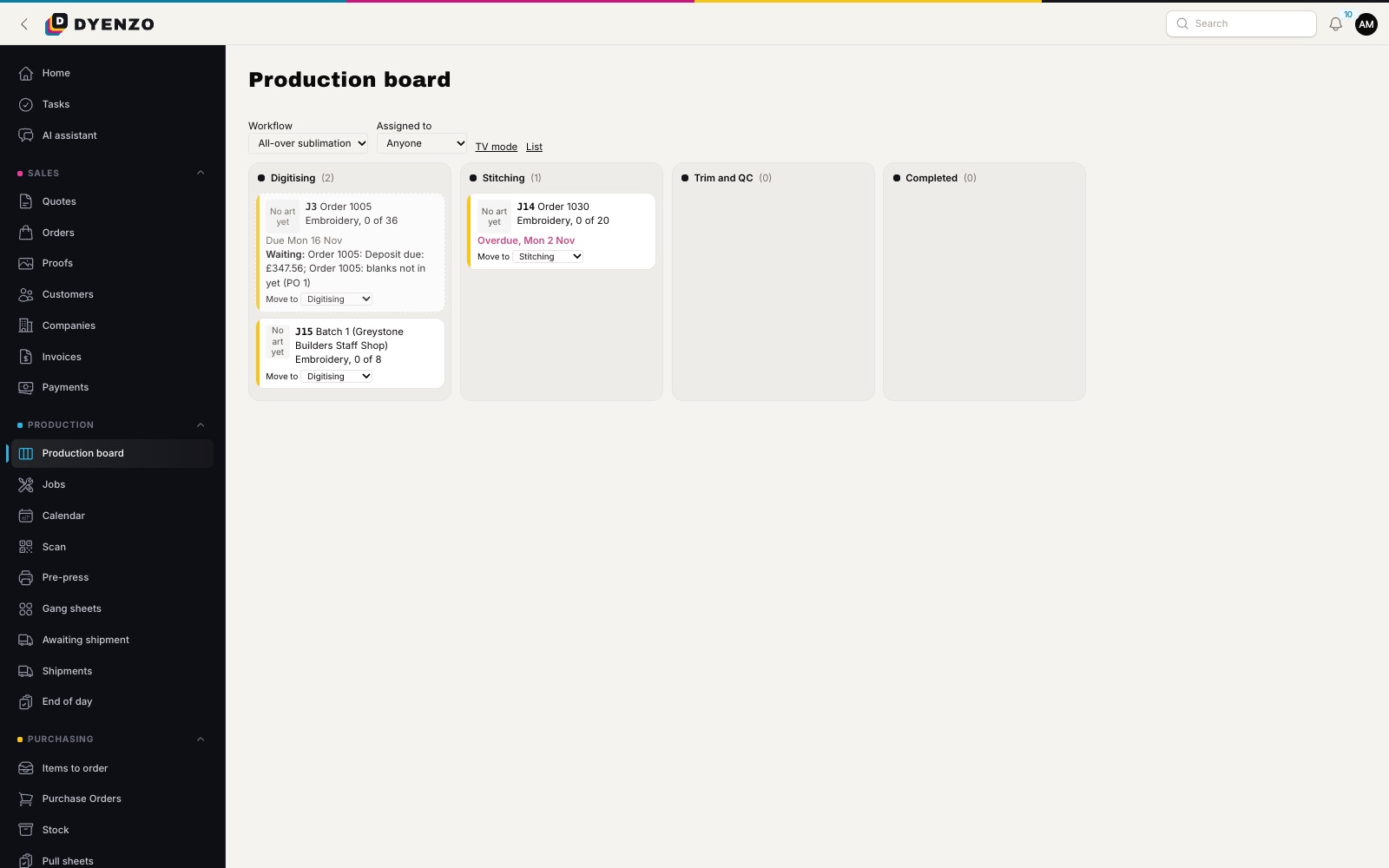
Each decoration method has its own stages, such as Art ready, Screens, On press, Curing and Packing, always ending in Completed. A stage can assign the job to a person when it arrives, and can have a target time so a job that sits too long stands out. As jobs move, the order status follows on its own to In production and then Ready, so the office and the customer see progress without anyone updating it by hand.
How the floor uses it
- Print the job ticket. It lists the items, sizes and print locations, with a barcode.
- Scan the barcode with a USB scanner, or with a phone camera on the scan page, to move the job to its next stage.
- Record how many pieces were produced for each item, and undo the last count if it was wrong.
- Drag cards between stages on the board, or use Move to.
- Put the board on a TV in read-only mode. It refreshes by itself.
Scheduling and the production calendar
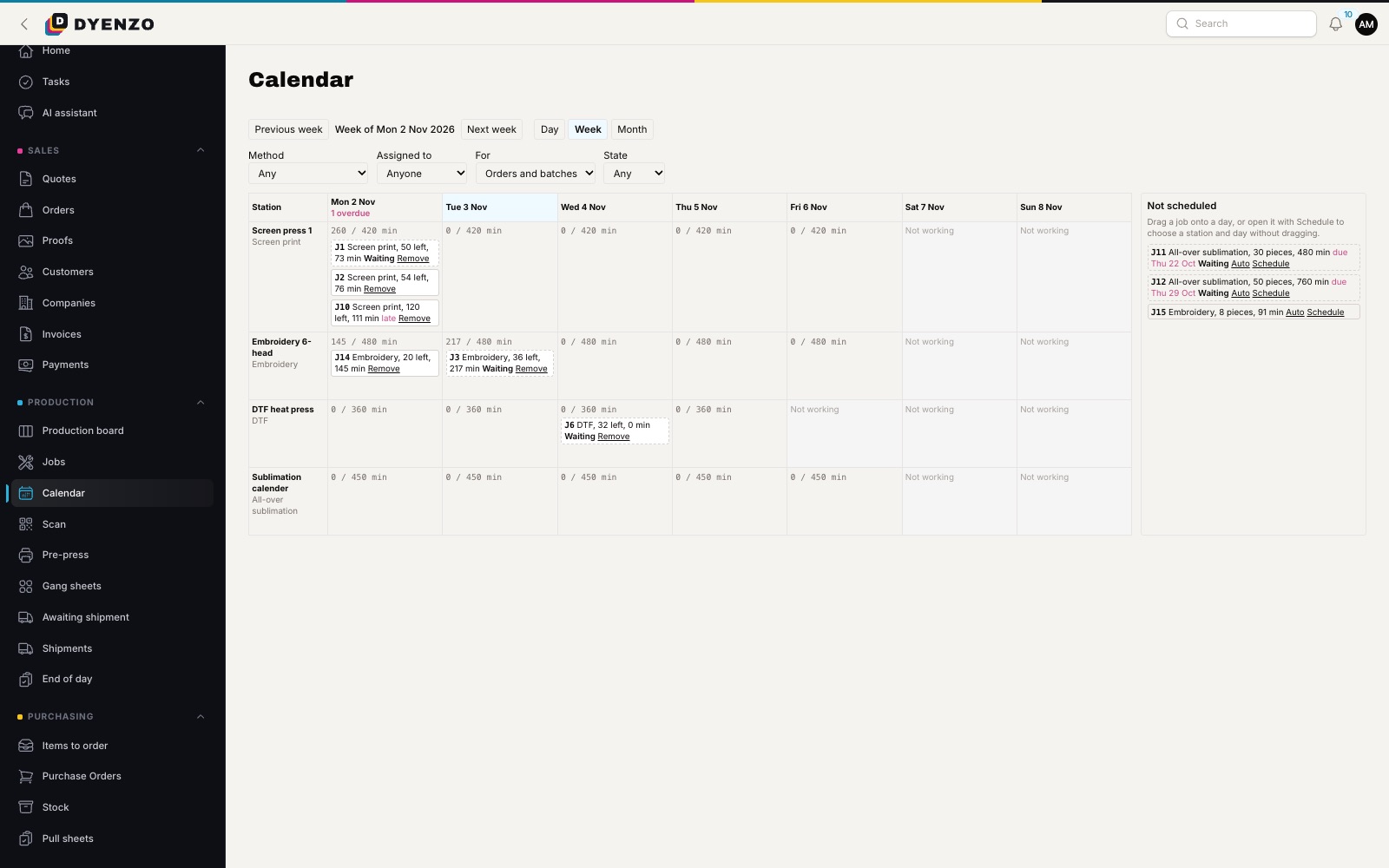
Set each station's minutes per day, then schedule jobs onto a station and a day. The production calendar shows a day, a week or a month, with jobs due and overdue on each day. Filter it by method, by person, by order or batch, or by jobs that are waiting or ready. The board marks jobs that are overdue, due today, due tomorrow or due within three days.
Settings that matter
| Setting | What it does |
|---|---|
| Split jobs | One job per method, per method and location, or per method and line |
| Stages | The steps for each method, with an assignee and a target time |
| Statuses | Which order statuses mean In production and Ready |
| Stations | Minutes per day for scheduling, and an optional hot folder |
| Produced after received | Stops counts and completion until the blanks are in |
What happens next
A completed job marks the order Ready. Packing slips and box labels print from the shipping queue, the label is bought from the order, and the customer gets tracking. Every move a job makes is kept in its history with who did it and when, so you can always see where time went.
Questions
Do I need special scanners?
No. Any USB barcode scanner that types like a keyboard works, and so does a phone camera on the scan page.
Can floor staff use it without seeing prices?
Yes. The preset Floor role sees jobs and the scan page, not money. Floor users do not take a staff seat.
Can I see what each person is working on?
Yes. Jobs can be assigned, and the board and calendar filter by person.
Related
Dyenzo is opening to its first print businesses
Write to us for early access. Tell us what you print and which modules you need.